
Free Software Deployment for a Gaming Center: CCBoot, CBboot Classic and GamesFix
Step-by-step deployment of free software for a gaming center: CCBoot diskless boot, GPT disk fixes in Windows 25H2, SMB Server configuration and automatic game updates.
A properly configured server infrastructure makes it easier to maintain gaming computers, speed up game updates and reduce the time required to configure individual workstations.
This article covers free software for gaming centers, including CBboot Classic, CCBoot GPT Fix, CCBoot SMB Server and CCBoot GamesFix. These tools help organize diskless boot, centralize game storage and automatically fix common problems on gaming PCs.
What CCBoot Tools Are Used For
- Booting computers over the local network without local system drives.
- Centralized storage of Windows and game files.
- Updating games on the server instead of every individual PC.
- Fixing GPT disk space detection problems.
- Configuring access to game files through SMB.
- Automatically fixing gaming computers with GamesFix.
CBboot Classic — Diskless System for a Gaming Center
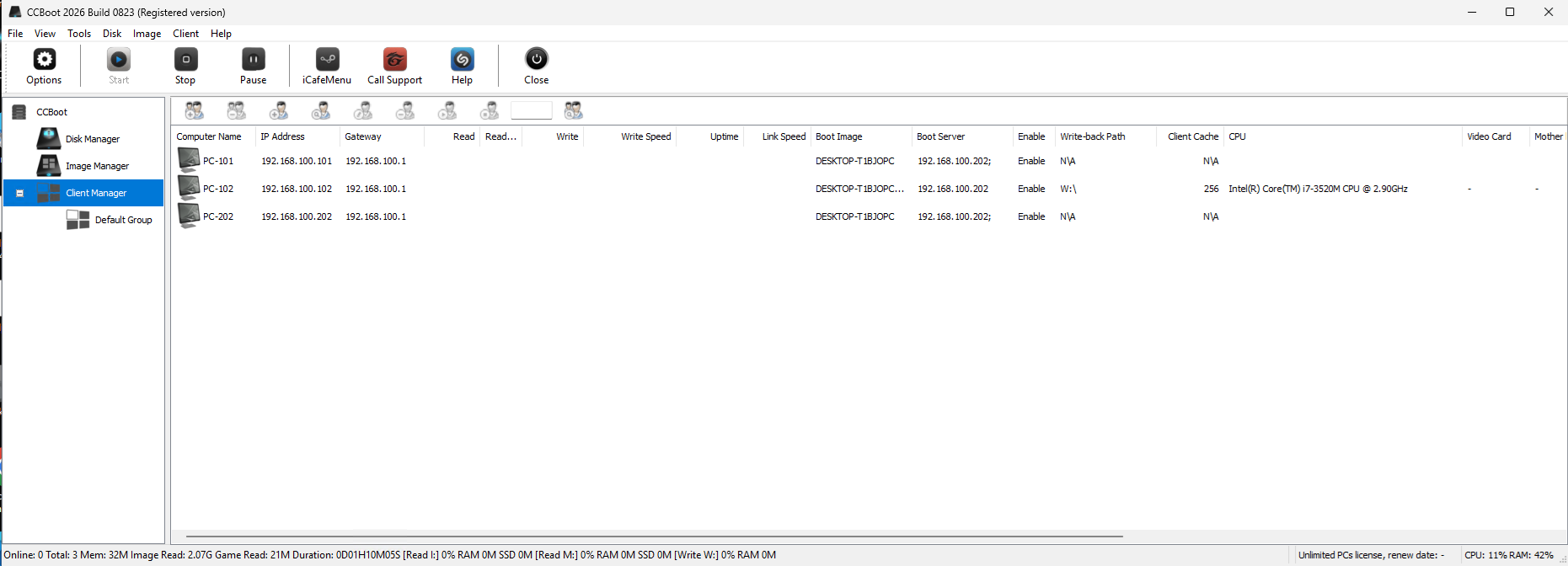
CBboot Classic is used to organize diskless boot for gaming computers. With this setup, workstations receive the operating system and required files from a central server over the local network.
CCBoot GPT Fix for Windows 25H2
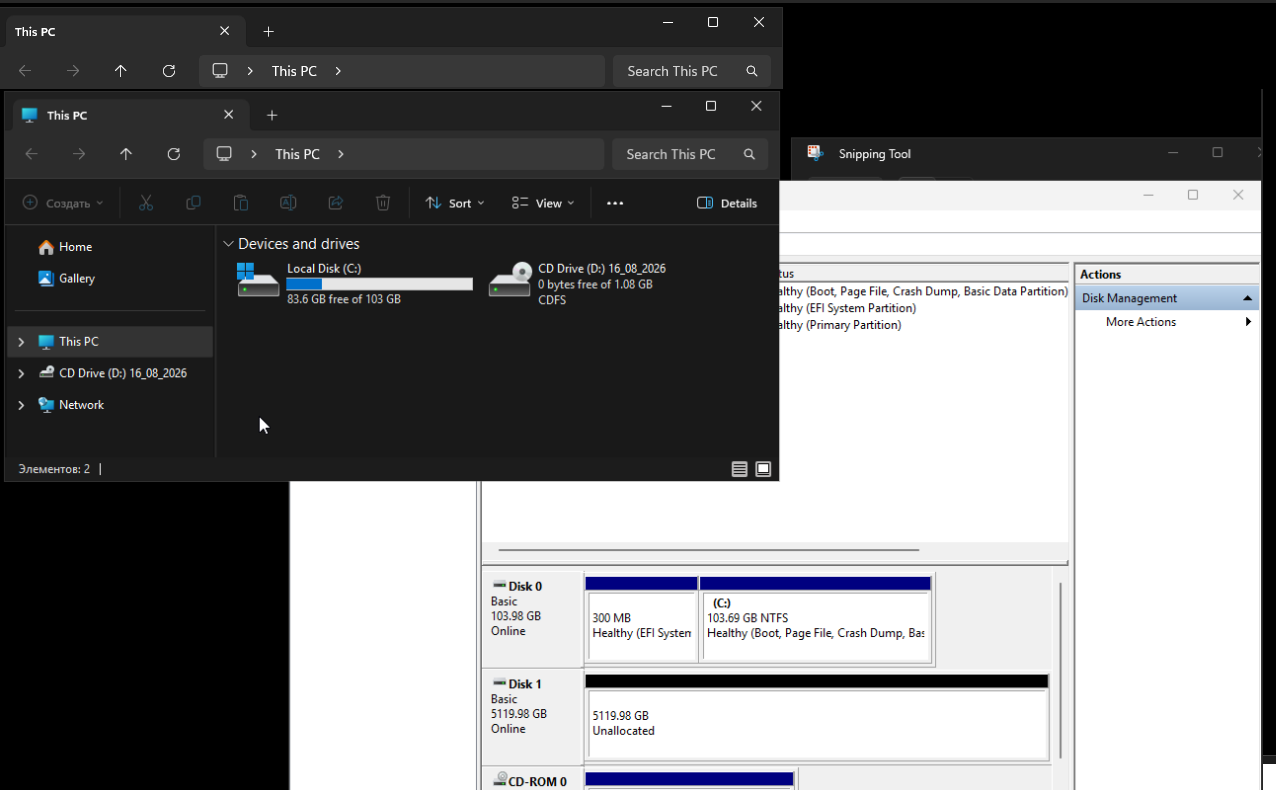
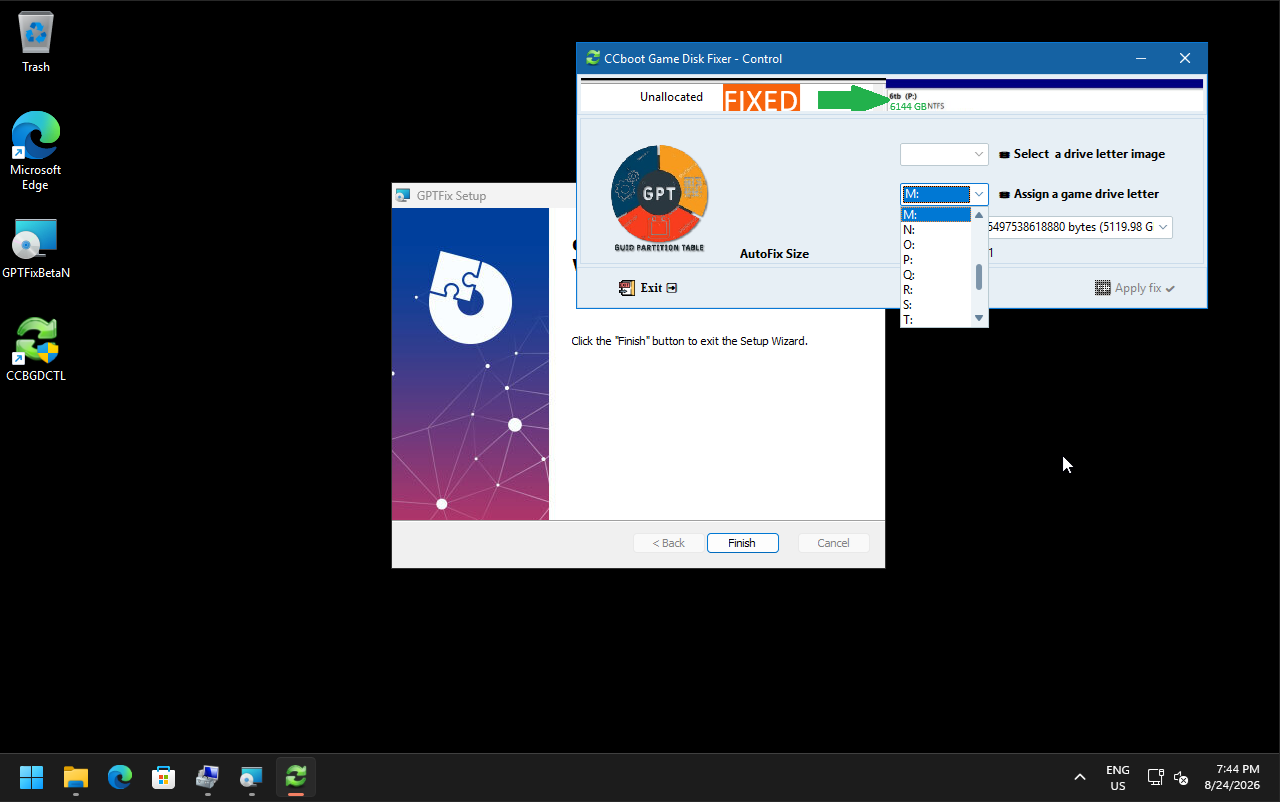
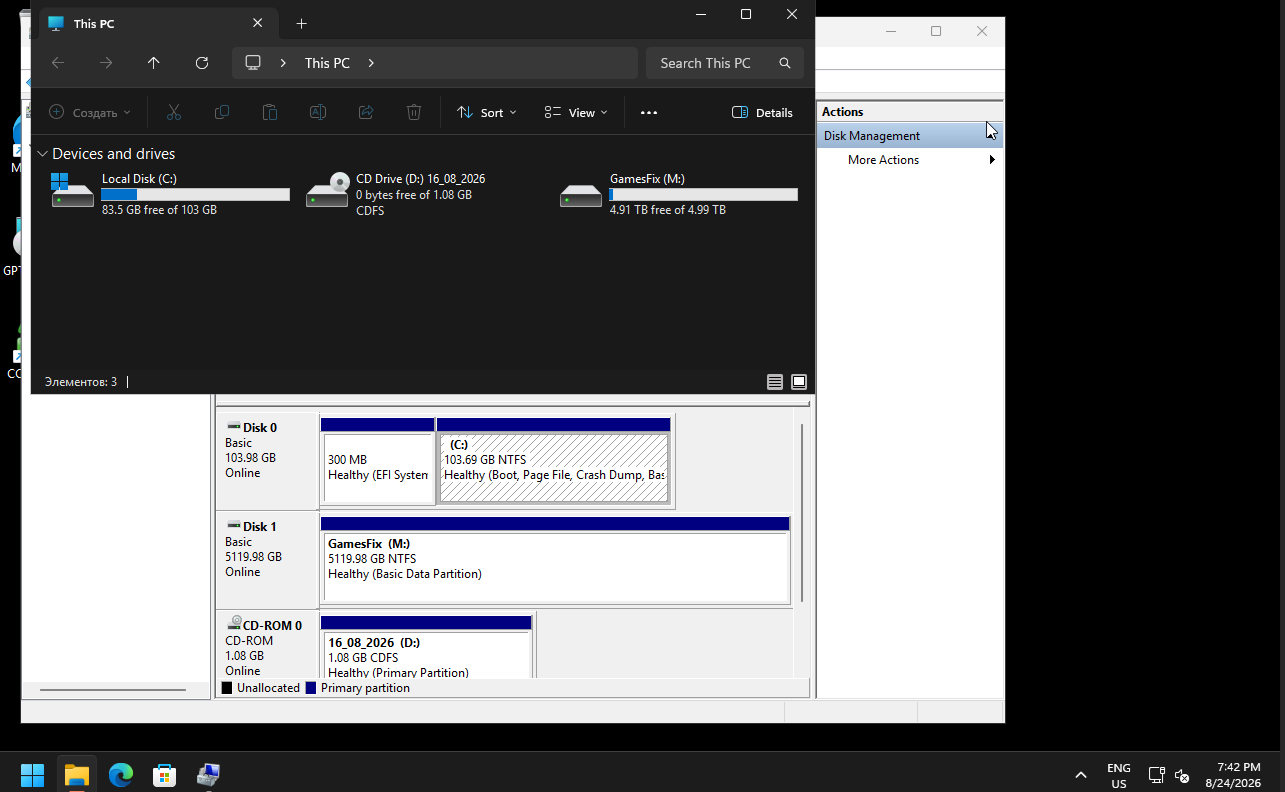
After installing Windows 25H2, some gaming disks may show unused or unallocated space incorrectly. CCBoot GPT Fix is designed to solve similar problems on disks using GPT partitioning.
CCBoot SMB Server on Windows 10 and Windows 11
Some gaming centers use Windows 10 or Windows 11 instead of Windows Server to host the CCBoot server. In this case, SMB file sharing and network access must be configured correctly.
- Check the Windows network profile.
- Enable network discovery.
- Check sharing permissions for game folders.
- Check NTFS permissions.
- Check firewall settings.
- Test access from several gaming computers.
CCBoot GamesFix
CCBoot GamesFix helps automate the correction of common problems on gaming computers, including damaged files, reset settings, incorrect permissions and game launcher errors.
Automatic Game Updates on the CCBoot Server
Centralized game updates allow new files to be downloaded to the server once. Gaming computers can then use the updated version over the local network.
- Create a backup of the working game version.
- Start the game update on the server.
- Wait until the update is complete.
- Test the game on one computer.
- Apply GamesFix after the update if necessary.
- Make the updated version available to the remaining PCs.
Recommended Deployment Sequence
- Prepare the server and local network.
- Install CBboot Classic.
- Create and test the Windows image.
- Check GPT partitioning.
- Apply CCBoot GPT Fix if necessary.
- Configure SMB Server.
- Install games on the server.
- Configure game updates.
- Apply CCBoot GamesFix.
- Test the system on one workstation.
- Connect the remaining computers.
Conclusion
CBboot Classic, CCBoot GPT Fix, CCBoot SMB Server and CCBoot GamesFix help create a convenient infrastructure for centralized booting and maintenance of gaming computers.
Before deploying the system on all computers, test every change on one workstation, create a backup and only then connect the remaining gaming PCs.